CSS Selectors 101: How to Point at Exactly the Element You Want
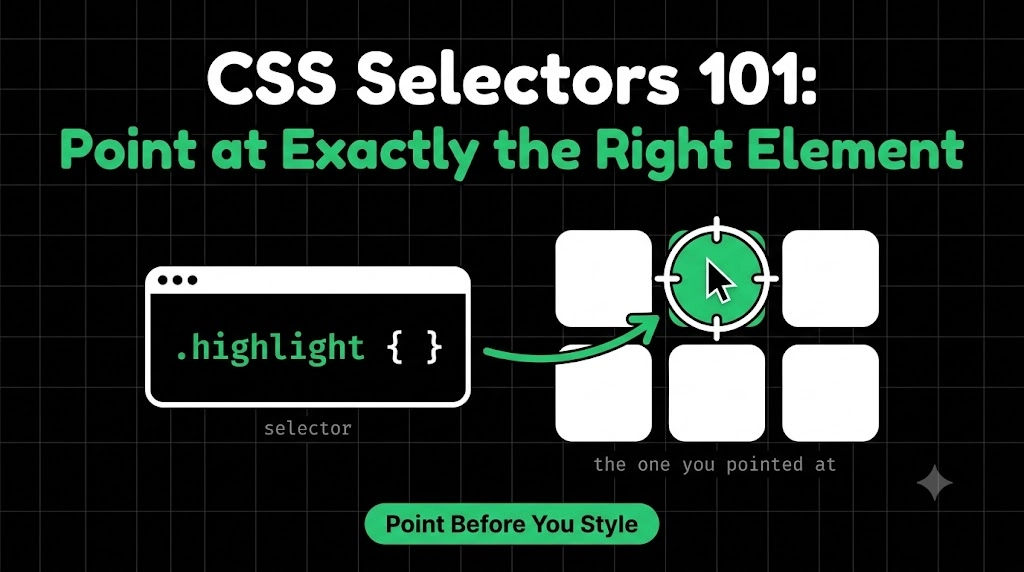
Imagine you’re in a classroom of 30 students, and you want to hand out a prize. If you just say “come here,” everyone runs up. If you say “everyone wearing glasses,” a few step forward. If you say “Rahul from row 3,” exactly one person comes.
That’s what CSS selectors do. They let you choose which elements on your page get which styles. Selectors are the foundation of CSS, because before you can style anything, you have to point at it.
Why Do We Need Selectors?
HTML builds the page, and CSS styles it. But a page has dozens of headings, paragraphs, and buttons. CSS needs a way to say “this style goes to these elements, not those.”
A CSS rule has two parts:
p {
	color: blue;
}
The p is the selector (who to style), and everything inside the curly braces is the style (how to style them).
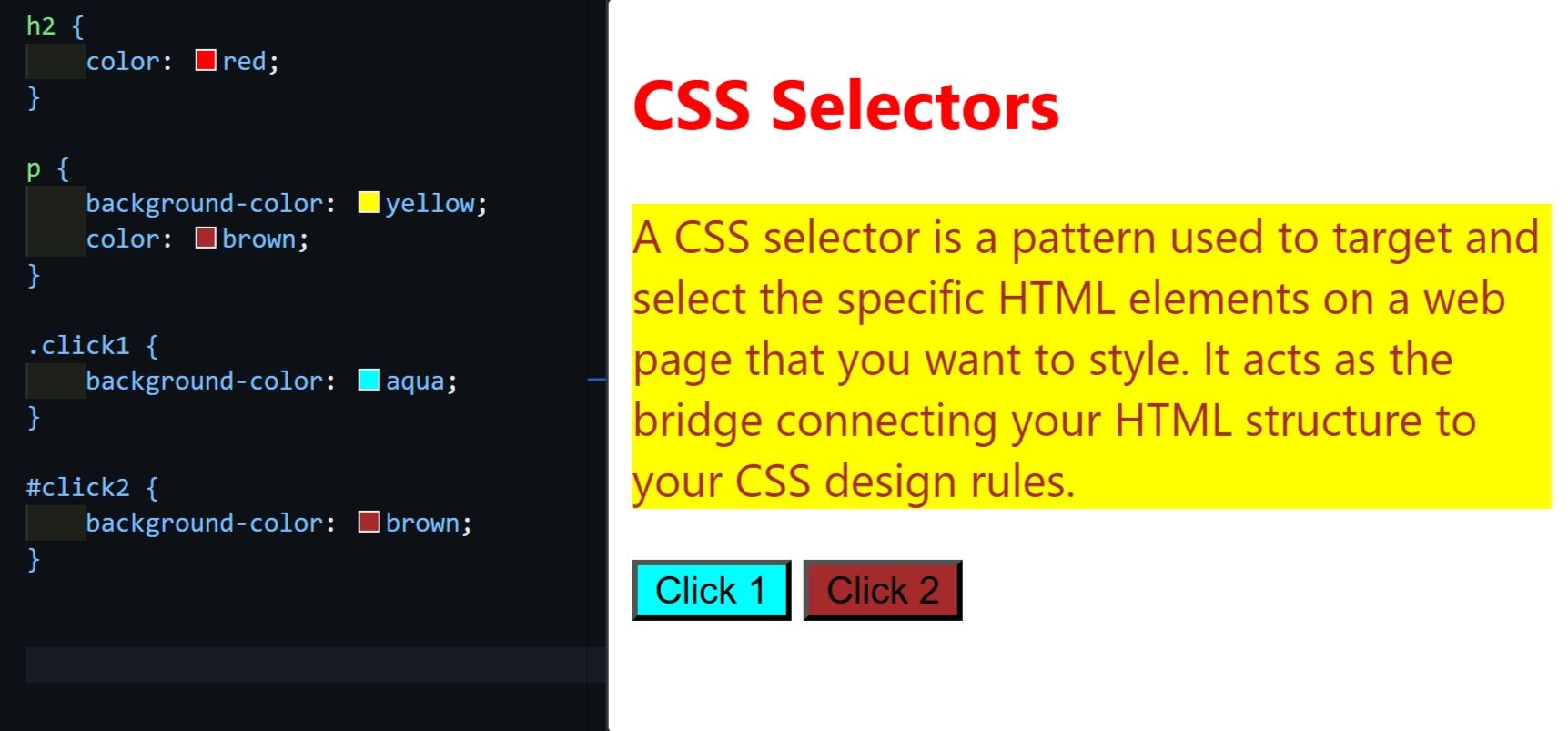
1. Element Selector
The simplest selector. It targets every element of that tag type.
<p>First paragraph</p>
<p>Second paragraph</p>
p {
  color: blue;
}
Before: both paragraphs are plain black. After: both turn blue.
Analogy: “Everyone wearing glasses.” It picks up everybody who fits the type.
2. Class Selector
What if you only want some paragraphs styled? Give those elements a class in your HTML, then target it with a dot . in CSS.
<p class="highlight">Important note</p>
<p>Normal text</p>
.highlight {
  background-color: yellow;
}
Before: both paragraphs look the same. After: only the first one gets the yellow background.
The big advantage is that classes are reusable. Many elements can share the same class, and one element can have several classes.
Analogy: “Everyone in the red team.” It’s a group name that many people can share.
3. ID Selector
An ID targets one unique element. In HTML you add an id, and in CSS you target it with a hash #.
<h1 id="main-title">Welcome</h1>
#main-title {
  color: crimson;
}
Analogy: “Rahul from row 3.” Only one person has that exact description, and that’s the rule for IDs too: each ID should be used only once per page.
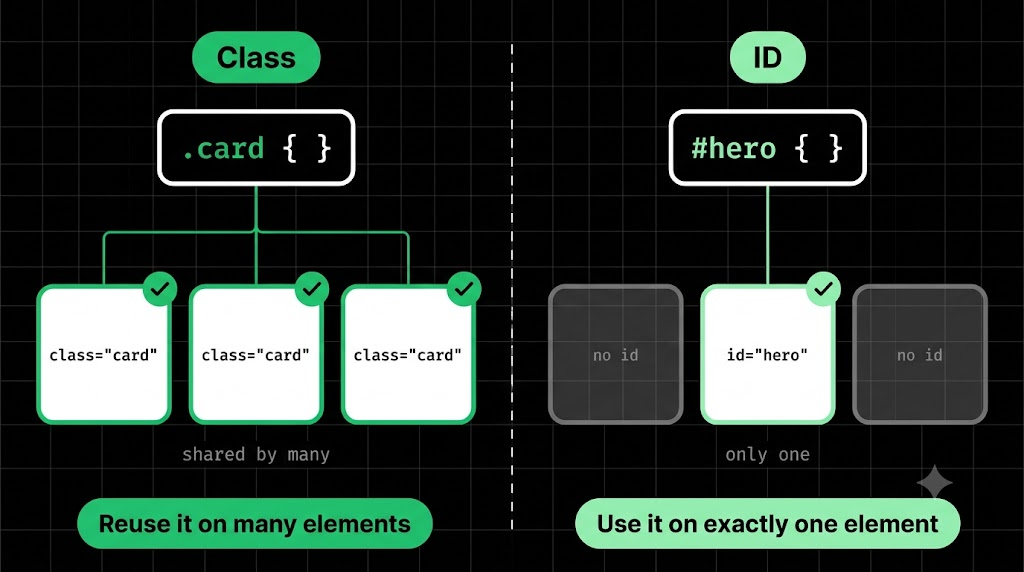
Class vs ID, simplified: use a class when you want to style many things, and an ID when you want to point at one special thing. In day-to-day styling, classes are used far more often.
4. Group Selectors
When several elements need the same style, don’t repeat yourself. Separate selectors with a comma.
h1, h2, h3 {
  font-family: Arial, sans-serif;
}
All three headings now share the same font in one rule. It’s like announcing “Students in row 1, row 2, and row 3, please stand up” in a single sentence.
5. Descendant Selectors
Sometimes you want to style an element only when it’s inside another element. Separate the two selectors with a space.
<div class="card">
  <p>Inside the card</p>
</div>
<p>Outside the card</p>
.card p {
	color: green;
}
Before: both paragraphs are black. After: only the paragraph inside .card turns green. The one outside is untouched.
Analogy: “Students inside the library.” The place narrows down the group.
6. Basic Selector Priority
What happens when two rules target the same element and disagree?
p {
	color: blue;
}

.highlight {
	color: green;
}

#special {
	color: red;
}
<p id="special" class="highlight">Which color am I?</p>
CSS decides using specificity, which means the more specific the selector, the higher its priority:
ID selector > Class selector > Element selector
So this paragraph turns red. Think of it like addressing mail: “a person in the city” (element) is vague, “a person in the Blue Team” (class) is more specific, and “Rahul, ID number 42” (ID) is the most specific of all.
(If two rules are equally specific, the one written later in the file wins. And there’s more to specificity, but this is all you need for now.)
Quick Recap
ptargets all elements of that type.nametargets elements with that class#nametargets the one element with that IDh1, h2targets multiple selectors at once.card ptargets elements inside another- Priority: ID > class > element
Wrapping Up
Selectors are how CSS chooses who to style. Start broad with elements, get more specific with classes, and go pinpoint with IDs. Once you’re comfortable choosing elements, the rest of CSS becomes much easier.
Comments
Join the discussionNo comments yet. Be the first to comment.
HTML, CSS & the Browser
A beginner-friendly HTML & CSS series for developers. Learn how browsers turn code into pages, then build up your skills one concept at a time, with simple analogies and clear diagrams.