Getting Started with cURL: Talk to Any Server From Your Terminal
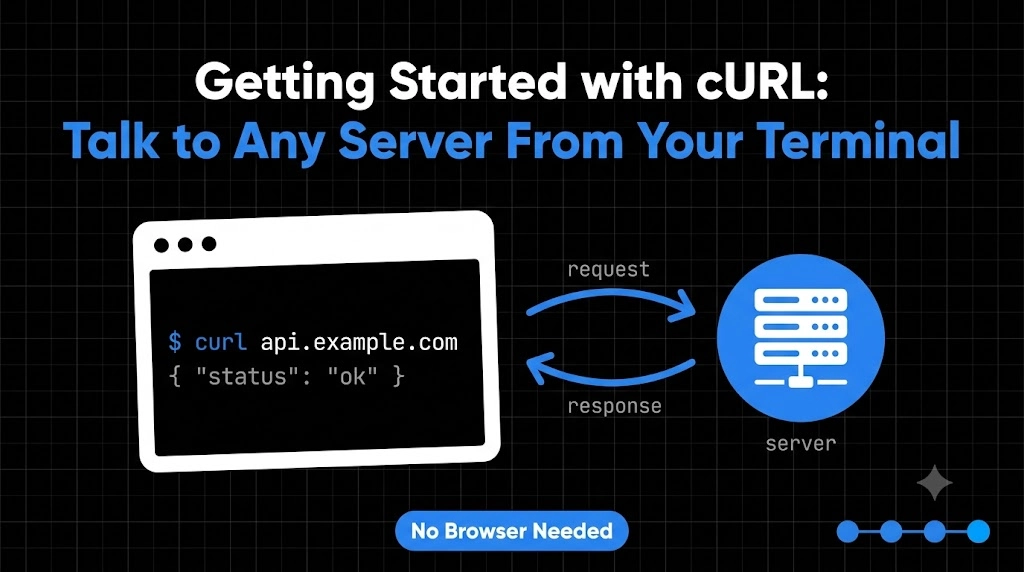
Every time you open a website or use an app, your device is talking to a server. A server is just a computer somewhere that stores data and answers questions. You ask, it replies.
Usually your browser does the asking for you. But what if you want to ask a server directly, without a browser, and see exactly what comes back? That’s what cURL is for, and by the end of this blog you’ll have used it yourself.
What is cURL?
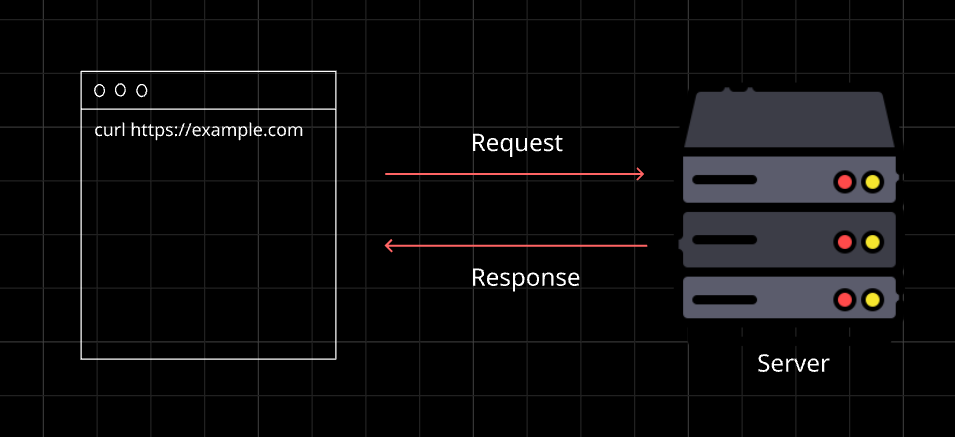
cURL is a command-line tool that sends a message to a server and shows you the reply. That’s it.
Think of it as sending a text message to a server from your terminal. You type the address, hit Enter, and the server texts back.
Why Do Programmers Need cURL?
When you build a backend or work with APIs, you constantly need to check things. Is my server running? What does this API return? Did my change work?
A browser can do some of this, but cURL is faster, scriptable, and shows you the raw conversation. It’s like a test drive for your server, with no fancy app in the way.
Your First Request
Open your terminal and type:
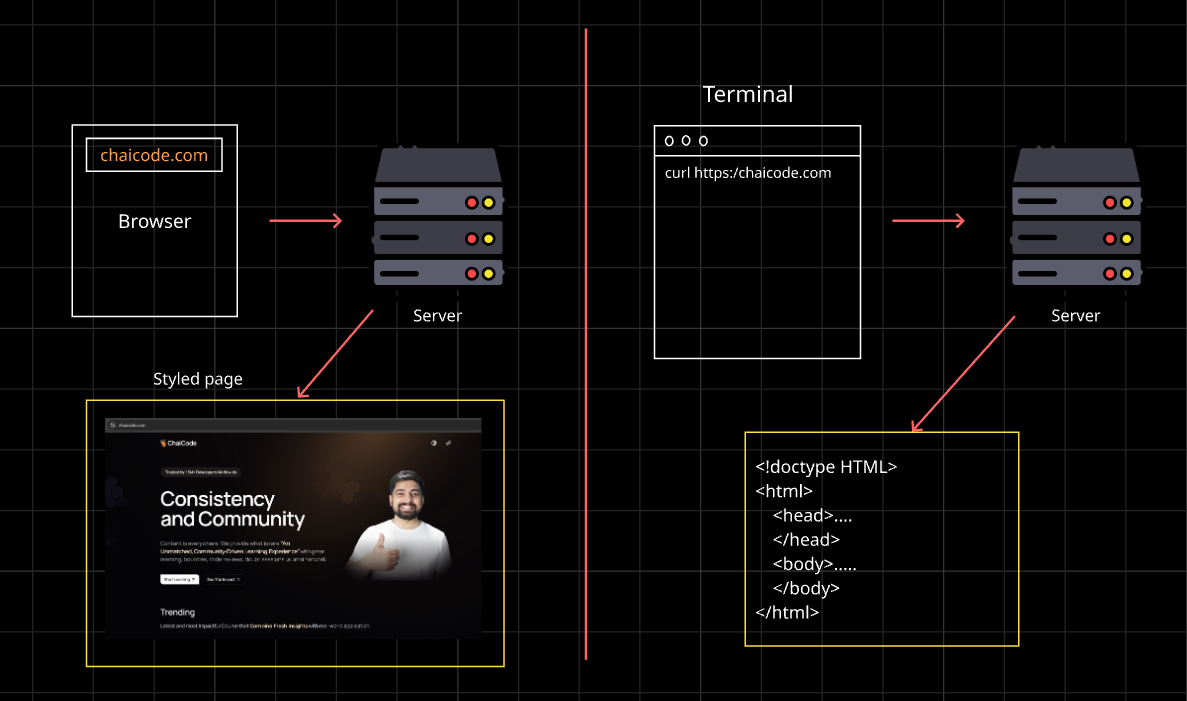
curl https://example.com
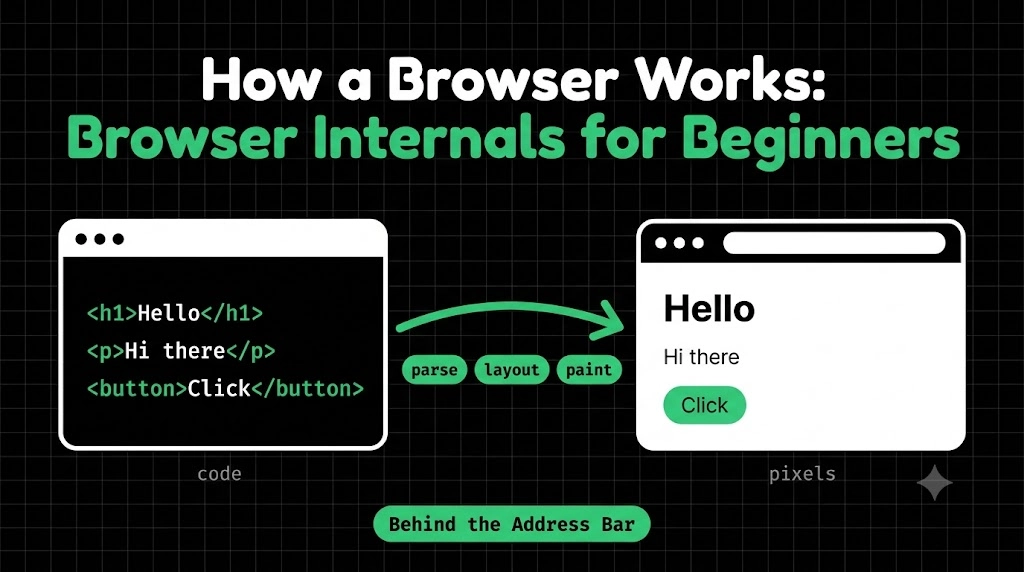
Press Enter. You’ll see a block of text that starts with <!doctype html>. That’s the actual webpage code, the same thing your browser receives before turning it into a pretty page.
Congratulations, you just talked to a server.
Understanding Request and Response
Every conversation has two parts.
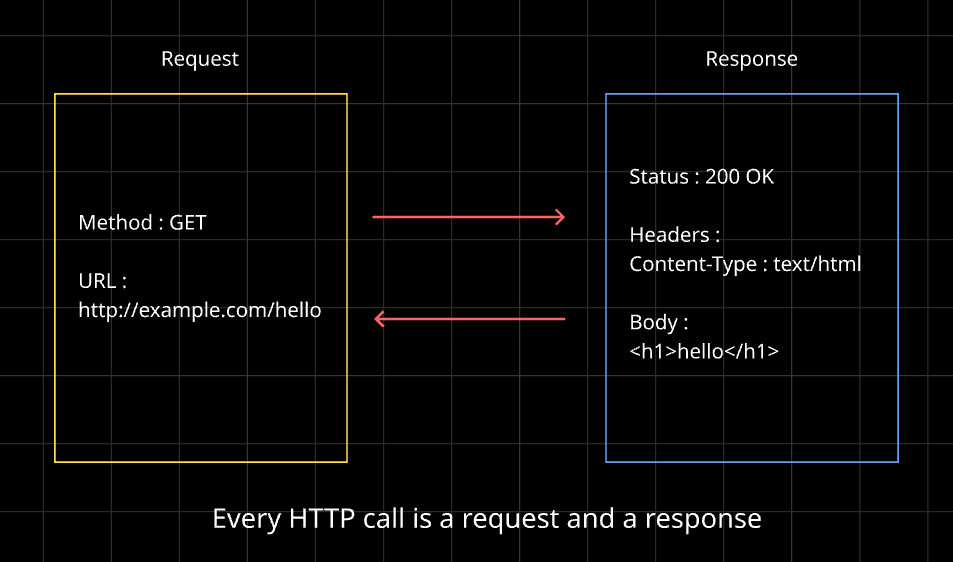
Request: what you send. It says which address you want and what you want to do with it.
Response: what the server sends back. It has two important parts:
Status code: a number telling you how it went.
200means success,404means not found, and500means the server had a problem.Body: the actual data, like a webpage or some JSON.
Want to see the status? Add -i to include the response details:
curl -i https://example.com
You’ll see a line like HTTP/2 200 at the top, then some headers (extra info about the response), then the body.
Think of status codes like a restaurant. 200 is “here’s your food,” 404 is “we don’t have that dish,” and 500 is “the kitchen is on fire.”
Using cURL to Talk to APIs
An API is a server that returns data instead of webpages, usually as JSON. Here’s a free practice API:
curl https://jsonplaceholder.typicode.com/posts/1
You’ll get back something like:
{
  "userId": 1,
  "id": 1,
  "title": "...",
  "body": "..."
}
That was a GET request, which means “give me this data.” It’s the default, so you didn’t have to type anything extra.
The other one you’ll meet early is POST, which means “here’s some data, please save it”:
curl -X POST https://jsonplaceholder.typicode.com/posts \
  -H "Content-Type: application/json" \
  -d '{"title": "Hello", "body": "My first post", "userId": 1}'
Here, -X POST sets the method, -H adds a header saying we’re sending JSON, and -d is the data. The server replies with the created item.
For now, remember only this: GET is for reading, POST is for sending.
Common Mistakes Beginners Make
Forgetting
https://. Always include the full address, or cURL may not behave as you expect.Messing up quotes in POST data. JSON needs double quotes inside, so wrap the whole thing in single quotes (on Windows PowerShell, quoting works differently, so be careful).
Forgetting the Content-Type header when sending JSON. The server may not understand your data.
Panicking at the wall of text. It’s normal. Look for the status code first, then the body.
Ignoring the status code. A
404or500tells you what went wrong before you read anything else.
Wrapping Up
cURL is just a way to talk to servers from your terminal. Send a request, read the response, and check the status code. GET reads, POST sends. Start there, and everything else will make sense later.
Comments
Join the discussionNo comments yet. Be the first to comment.
Networking Basics
How does the internet actually reach your code? This 6-part beginner series covers network devices, DNS, DNS records, TCP, TCP vs UDP, and hands-on testing with cURL.